 Griffith Software

Download
Version 1.1.0 · released November 2, 2026
- RoomSwitcher_v1.1.0.zip (42 MB; contains RoomSwitcher.exe, README, CHANGELOG, LICENSE, NOTICE and THIRD-PARTY-NOTICES)
SHA-256:d6cdc48063e8012e03c2fba4816db6a06693d07def0e116fa1ff329a52b0e8ad - RoomSwitcher_v1.1.0.zip.sha256
All versions are on the releases page.
Check Your Download. In PowerShell, run Get-FileHash .\RoomSwitcher_v1.1.0.zip -Algorithm SHA256 and compare the result with the SHA-256 above.
Requirements. Windows 11, 64-bit (x64). Room Switcher was developed and tested on Windows 11, with three displays on two graphics cards. Windows 10 is not tested.
Installing. There is no installer. Unzip the file anywhere and run RoomSwitcher.exe. It is a single file of about 50 MB that includes everything it needs. Turning devices on and off is optional and asks for administrator permission once. To update, close Room Switcher and replace the old files; your rooms and settings are kept.
Windows SmartScreen. Windows may show "Windows protected your PC" when you first run it, because it is not code-signed and Windows has not yet seen enough downloads of it. Check that the SHA-256 shown here matches your file, then choose More info, then Run anyway. The one-time administrator prompt for device switching will say the publisher is unknown for the same reason.
Support and feedback · Terms · Privacy policy · Source code
What It Does
Room Switcher lets you set up several workstations, at home or in the office, that all run from the same PC. A KVM switch shares one desk between several computers; Room Switcher does the opposite and shares one computer between several desks.
Each desk's displays, speakers, microphone, keyboard, mouse and webcam stay cabled to the PC. You group them into named rooms, such as "Office" (two displays side by side) or "Living Area" (the TV and its speakers), and pick a room from the tray icon or with a keyboard shortcut. That room's displays come on, Windows switches to its speakers and microphone, and its devices are turned on. The other displays go dark ("No signal") and any devices you chose are turned off. Each room remembers where your open windows were, so nothing is left stranded on a display that's off.
Good to Know: every desk is still wired to the PC. Room Switcher doesn't send video or USB anywhere, so desks further away need long cables or HDMI and USB extenders. One room is on at a time: it is for one person moving between desks, not for several people using the PC at once.
Features
- Displays. Any number of displays and rooms. A display can be in many rooms, set up differently in each. Extend, duplicate, or mix both in one room. Combinations your graphics card can't run are flagged in plain words.
- Sound. Each room can switch Windows to its own speakers and microphone. If you choose a TV's HDMI sound, Room Switcher waits a few seconds for it to appear after the TV comes on.
- Devices. List the keyboards, mice, webcams and other USB or Bluetooth devices each room uses, and let rooms turn chosen ones on and off. Whatever the rooms say, at least one keyboard and one mouse always stay on, and keyboards ask for confirmation first. When you exit, Room Switcher offers to turn back on anything a room turned off.
- Windows Stay Where You Left Them. Each room remembers where your open windows were and puts them back.
- Keyboard Shortcuts. Ctrl+Alt+1 to 9 for the first nine rooms and Ctrl+Alt+0 for the next room. All of them can be changed.
- Built-In Arranger. Drag a room's screens into place and set resolution, refresh rate, orientation and scale, without the other rooms' displays getting in the way. Select Keep changes if it looks right, or it reverts by itself after 15 seconds.
- Test Devices. Pick a room and check everything it uses: show each display's number, play a chime through its speakers, watch its microphone's level, press a key or move a mouse to see it respond. If apps go silent while Windows sounds still play, it can restart Windows Audio for you.
- Rooms Still Switch When a Display Isn't Working. If Windows can't detect one of a room's displays, duplicated displays are on different graphics cards, the card can't show that many screens, or the driver turns down the whole set, the room switches with the displays that work and says which ones stayed off. A room is only unavailable when none of its displays can be turned on.
- Reset and Uninstall. Reset, next to the version number in settings, has three choices: Reset Rooms and Assignments (keeps display, sound and device nicknames), Reset Everything (as on first use) and Uninstall Room Switcher. Each first puts Windows back the way Room Switcher found it: every display on at its own resolution and the recommended scale, the speakers and microphone Windows had before a room first changed them, and any devices the rooms turned off back on.
- Safe Switching. If a switch fails, your previous display settings are restored automatically.
- Command Line.
RoomSwitcher.exe --room "Office"switches rooms from a shortcut, script or Task Scheduler job.--listlists the rooms and--allturns on all displays.
Setting It Up
- Displays: give each display a name you'll recognise. Identify shows each display's number on its screen.
- Audio and Devices: give your speakers, microphones, keyboards, mice and webcams nicknames and test them. On Devices, tick Switch by room for anything rooms should turn on and off.
- Rooms: add a room, choose what each display shows (off, a screen, or a duplicate of another), then choose its speakers, microphone and devices.
- Arrange: pick a room, drag its screens into place and apply. Do this once per room.
- Finish: choose whether to start with Windows. Room Switcher then lives in the system tray, and the icon shows the first letter of the room that's on.
Limits
- Your Graphics Card Sets the Limits. It decides how many displays can be on at once, which displays can be duplicated and which resolutions duplicated displays can share. Room Switcher asks Windows and the graphics driver, and tells you plainly which displays stayed off.
- Programs Running as Administrator can't be moved by a normal program, so their windows are only put back if Room Switcher is also run as administrator.
- Some games and full-screen apps react badly to displays changing while they run.
- After Windows logo key + P or a change in Windows Settings, the tray shows no room selected until you choose one.
- If a room turned a device off, Room Switcher offers to turn it back on when you choose Exit. A device left off stays off until you turn it on again with Device Manager or by switching to a room that turns it on.
Room Switcher is an independent project. It is not made by, endorsed by, or affiliated with Microsoft, and that name belongs to its owner.
Screenshots
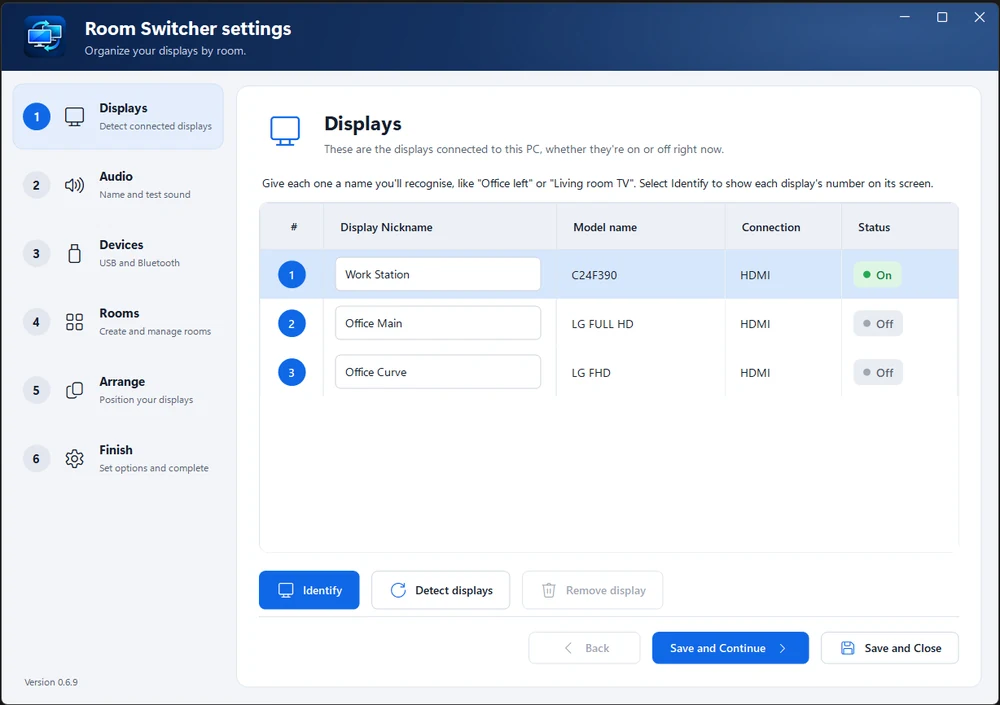
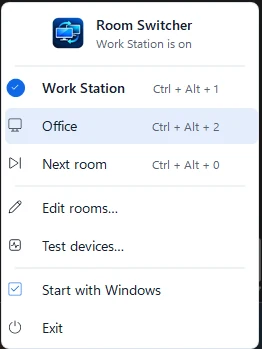
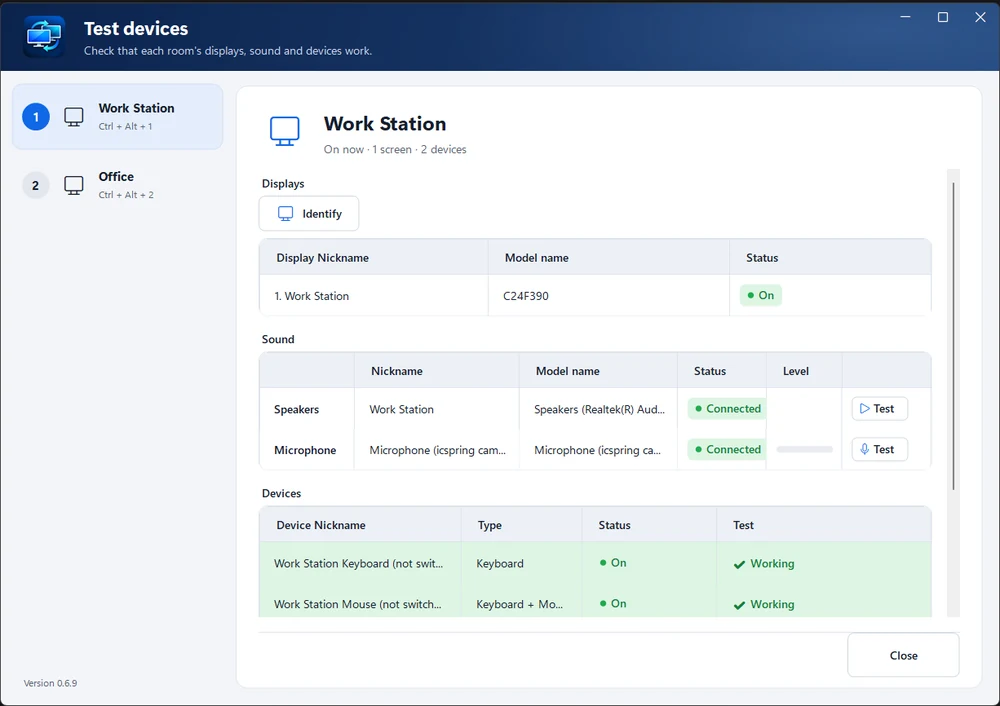
Details
- PlatformWindows tray app
- PriceFree
- LicenseApache 2.0 with the Commons Clause
- Version1.1.0
- First RunWindows SmartScreen will warn
- StatusAvailable
Room Switcher is free to use, modify and share under the Apache License 2.0 with the Commons Clause, which does not allow selling it. That makes it source available rather than open source, and its source code is on GitHub. Where the license differs from the terms on this site, the license applies to Room Switcher. The download includes the .NET runtime (MIT, from Microsoft); its notice is in THIRD-PARTY-NOTICES.md. "Room Switcher" and "Griffith Software" are trademarks of Richard Griffith; the license grants no rights to use them, and modified versions must use a different name (see NOTICE).
Release Notes
Version 1.1.0
A display that isn't working no longer blocks its room. If Windows can't detect one of a room's displays, duplicated displays are on different graphics cards, the card can't show that many screens, or the driver turns down the whole set, the room still switches with the displays that work and says which ones stayed off. In settings those displays are highlighted in yellow. A room is only unavailable when none of its displays can be turned on. Reset, next to the version number in settings, can reset the rooms and what's assigned to them (keeping display, sound and device nicknames), reset everything, or uninstall Room Switcher; each first puts Windows back the way Room Switcher found it. Support This App, in the tray menu and on the Finish step of settings, opens griffith.software/support in your browser. To update, close Room Switcher and replace the old files; your rooms and settings are kept.
Version 1.0.0
First public release. Group each desk's displays, speakers, microphone and devices into a room, then pick a room from the tray icon or with a keyboard shortcut. That room comes on and the other displays go dark. It includes a built-in display arranger, Test devices, a saved window layout for each room, keyboard shortcuts and a command line. When you exit, Room Switcher offers to turn back on devices a room turned off. The start-up log no longer contains your Windows user name. The download includes the bundled .NET runtime's license notice, a NOTICE file and a checksum file. Room Switcher is now licensed under the Apache License 2.0 with the Commons Clause.
Privacy Policy
Room Switcher doesn't send any information to me or to anyone else. It has no network code at all: no account, no analytics, no update check and no crash reporting. Everything it reads and saves stays on your computer. Support This App only opens a web page in your browser, and only if you choose it.
Who Runs It. Room Switcher is made by Griffith Software, Vinton, VA. Contact: hello@griffith.software, or the feedback page.
What It Reads, and Why. Only on your computer, through Windows, so it can switch rooms:
- Your displays: their names, resolutions, refresh rates, orientation, scale and positions.
- Your sound devices (speakers and microphones) and your USB and Bluetooth devices: their names and types.
- Your open windows: each program's file name, the window's title, class and position. This is read for the windows on all your displays, each time you leave a room, so the windows can be put back later. Window titles can include document names, web page titles or email subjects.
- While you test devices (on the Audio and Devices steps and in Test devices): the microphone's volume level, which is shown on screen and never recorded, and which keyboard or mouse is being used, never which keys you press or where the mouse moves.
What It Stores. Plain files on your computer:
config.jsonin%APPDATA%\Room Switcher(or next to the program, if you run it from a folder that already has aconfig.json): your displays, rooms, nicknames, shortcuts and settings.config.previous.jsonis the copy from before the last save.layouts.jsonin the same folder: for each room, the program names, window titles and positions of the windows that were open when you left it. It is replaced each time, not added to. It also keeps the default speakers and microphone Windows had before a room first changed them, so Reset can put them back.startup.login%LOCALAPPDATA%\Room Switcher: the last 100 lines of start-up notes. Folder paths in it are written as%USERPROFILE%, so it doesn't contain your Windows user name.- If you turn on device switching:
device-request.jsonanddevice-response.jsonin the same folder, which pass requests between Room Switcher and its helper. - If you turn on Start with Windows: a Room Switcher shortcut in your Startup folder.
- Windows may unpack parts of the program into a temporary folder while it runs.
Who Receives Your Data. No one. Nothing leaves your computer, and I don't run a server for Room Switcher.
Support. Support This App, in the tray menu and on the Finish step of settings, opens https://griffith.software/support?app=room-switcher in your browser, which forwards you to Griffith Software's page on Buy Me a Coffee. Room Switcher itself sends nothing. The visit is covered by the site's privacy policy.
Retention and Deletion. Everything stays until you delete it. To remove Room Switcher completely, open its settings and select Reset, then Uninstall Room Switcher. It first puts Windows back the way Room Switcher found it, then removes the device switching helper and its scheduled task (Windows asks for permission if it was set up), the startup and Start menu shortcuts that open it, %APPDATA%\Room Switcher and %LOCALAPPDATA%\Room Switcher, and deletes RoomSwitcher.exe and the files it came with a few seconds after it closes. To do it by hand instead, select Remove on the Devices step if you set up device switching, turn off Start with Windows in the tray menu, choose Exit (it offers to turn back on any devices rooms turned off), then delete RoomSwitcher.exe, %APPDATA%\Room Switcher and %LOCALAPPDATA%\Room Switcher. Because I hold no data about you, there is nothing for me to delete on request; you can still write to hello@griffith.software with questions.
The Administrator Helper. Windows needs administrator permission to turn devices on and off and to restart Windows Audio. If you choose Set up device switching, Room Switcher asks Windows once. It then copies itself into C:\Program Files\Room Switcher and adds a hidden scheduled task, Room Switcher\Device switching, that runs that copy with your account's highest privileges when you switch rooms. The helper can only turn on or off the USB and Bluetooth devices Room Switcher lists, and restart Windows Audio. It cannot run other programs or commands. The request it follows is a file in your user folder, so another program already running as you could ask it to do the same two things. Remove on the Devices step deletes the task and the helper. The main program always runs without administrator rights.
Changes. If this policy changes, the new version will be posted on this page with a new effective date. If Room Switcher ever starts sending information anywhere, the policy will say so before that version is released.
Effective November 2, 2026
Why It Asks for Each Permission
| Permission | What It Is For |
|---|---|
| Change display settings | Turning displays on and off, and setting their position, resolution, refresh rate, orientation and scale. Needs no administrator rights. |
| Read and move other programs' windows | Remembering where your windows were and putting them back. It can't move the windows of programs running as administrator unless Room Switcher is also run as administrator. |
| Set the default sound devices | Switching Windows to a room's speakers and microphone. It uses an undocumented Windows interface that other sound-switching tools also use. |
| Speakers and microphone (testing only) | Playing a chime and showing the microphone's volume level. Nothing is recorded. Windows' own microphone privacy setting can block this. |
| Read USB and Bluetooth devices | Listing the keyboards, mice, webcams and other devices you can give to rooms. |
| Turn devices on and off, and restart Windows Audio (administrator, optional) | Rooms that switch devices, and the silent-apps fix. This needs the one-time administrator helper described above, which you can remove at any time. |
| Global keyboard shortcuts | Switching rooms from anywhere in Windows with the shortcuts you choose. It does not record what you type. |
| Save files | Your settings, saved window layouts and a short start-up log, as listed above, and a Startup shortcut if you turn on Start with Windows. |
| Network | None. Room Switcher never connects to the internet. Support This App opens a web page in your browser. |
Free, No Guarantees
Room Switcher is free and is provided as is, with no promise of support, fixes or new features. It changes your display settings and can turn devices off, so try it with care. See the terms. Found a problem or want a feature? Use the feedback page. I read everything but can't promise a response.
Last updated November 2, 2026